
Invoicing is where most NDIS providers lose time they can't get back.
Between plan-managed participants, NDIA-managed bulk uploads, and self-managed payments, a single invoicing cycle can take hours when your systems don't work together.
Astalty handles the entire NDIS invoicing workflow in one place: from creating and sending invoices to uploading to PRODA to reconciling payments. Here's exactly how it works.
The three types of NDIS invoicing
Every participant you support sits in one of three funding management types, and each one has a different invoicing process.
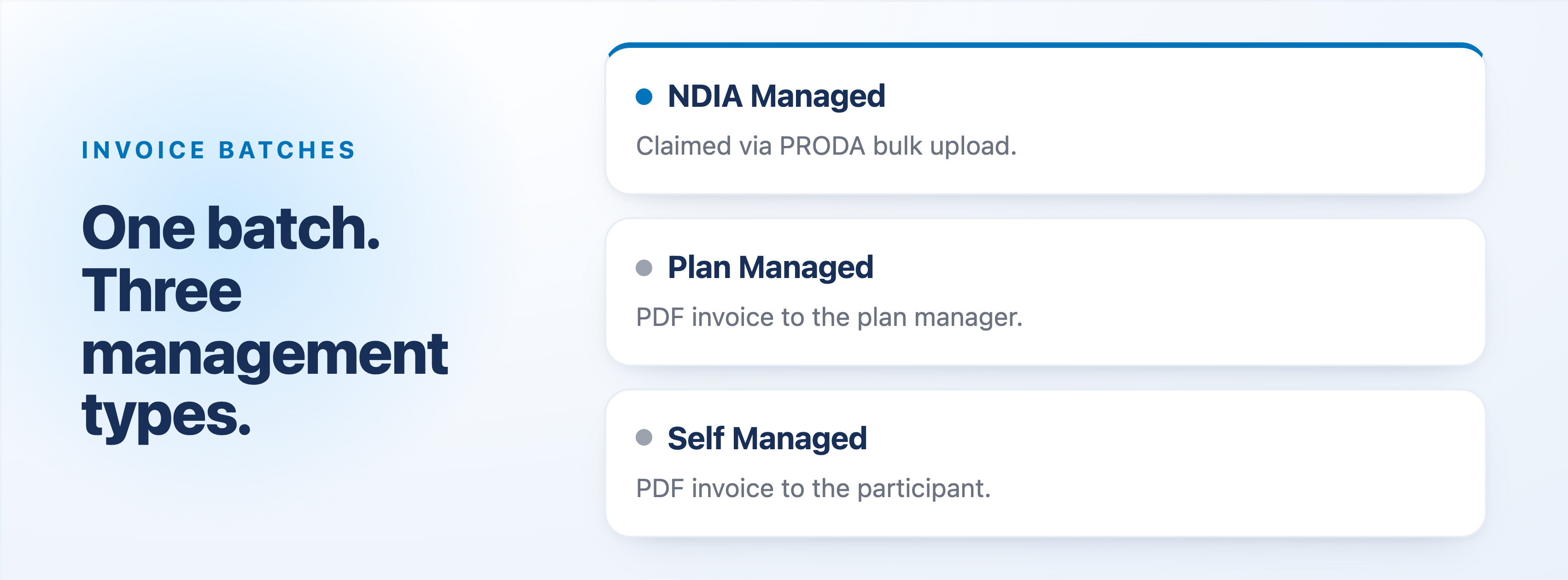
NDIA-managed participants have their funding managed directly by the NDIA. Providers claim payment by submitting a bulk upload file through the PRODA portal. The NDIA then processes the payment and returns a receipt file and a payment summary file.
Plan-managed participants have a registered plan manager who receives your invoices and pays them on the participant's behalf. You invoice the plan manager directly by PDF invoice.
Self-managed participants pay you directly from their own NDIS funds. You send them a PDF invoice, and they transfer payment.
Astalty handles all three from the same workflow, so your team doesn't need to run separate processes for each.
Step 1: Create an Invoice Batch
All invoicing in Astalty starts with an Invoice Batch. A batch groups together all uninvoiced charges within a date range and turns them into invoices.
You can run batches daily, weekly, or monthly, whatever matches your billing cycle. You can also go back to any past period and run a batch to catch anything that wasn't invoiced at the time.
When you create a batch, Astalty generates it as a draft first. Before confirming, you can:
Filter by management type to separate NDIA, plan-managed, and self-managed charges into separate batches
Filter by participant if you need to invoice one person at a time
Filter by charge type to separate task-based charges from support charges
Exclude individual charges you're not ready to invoice yet
Review any shifts that haven't been clocked out or approved before the batch goes out (Astalty warns you before you send out an invoice batch)
If Astalty detects uninvoiced charges from before your selected start date, it flags them automatically and offers to extend the date range to include them.
Nothing slips through without you seeing it first.
Once you're satisfied with the draft, you confirm the batch. At that point, Astalty creates the invoices and sends them directly from within the platform. PDF invoices go straight to plan managers and self-managed participants by email. You don't need a separate invoicing tool. Astalty does the sending.
For NDIA-managed charges, the invoices are created at this point too. The next step is generating the bulk upload file.
Step 2: Generate the PRODA Bulk Upload File
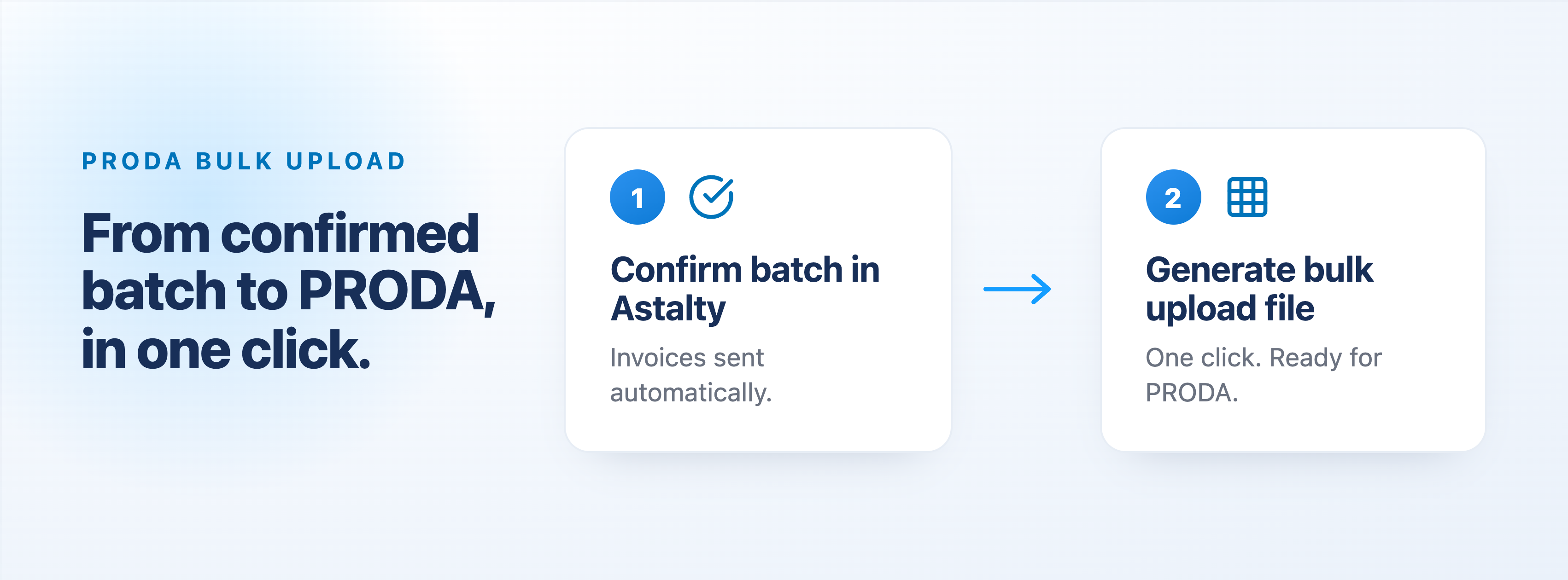
Once the invoice batch has been confirmed and invoices have been sent, you stay within that same batch to generate the PRODA bulk upload file.
If the batch contains NDIA-managed charges, a Generate Bulk Upload File button is available inside the confirmed batch. Click it, and Astalty downloads a correctly formatted CSV file to your computer, ready to upload directly into the PRODA portal.
One important note: do not open the file in Excel before uploading it. Excel automatically reformats the date columns into a format PRODA won't accept. The file is correct as downloaded. Go straight from your Downloads folder to PRODA.
This takes a process that used to require manual data entry into PRODA and reduces it to a single click, from inside the same batch you've already been working in.
Step 3: Reconcile NDIA Payments
Once PRODA processes the payment request, the NDIA generates a receipt file. This is usually available within an hour of submission, sometimes faster.
Download the receipt file from PRODA, then open the relevant Invoice Batch in Astalty and add an NDIA payment. Drag and drop the receipt file into the payment record and click Apply Results File.
Astalty then matches each payment in the receipt file to the corresponding claim in the batch automatically. No spreadsheet. No manual matching line by line.
If PRODA has rejected any individual claims, Astalty flags the errors directly on the charge so you can fix and resubmit. If the receipt file contains claims from a different batch, Astalty skips them and processes only the valid ones. No need to manually edit the file first.
Step 4: Manage Plan-Managed and Self-Managed Payments
For plan-managed and self-managed participants, invoices are already sent as part of Step 1. When payment arrives, you mark it as received in Astalty by creating a payment in the Finance tab and allocating it against the relevant invoices.
If you have the Xero integration enabled, payments reconciled in Xero sync back to Astalty automatically. If you don't use Xero, you record payments manually in Astalty.
Both approaches give you a clear record of what's been paid and what's outstanding.
Why invoices are sent from Astalty, not from Xero
A common question from providers who use Xero is whether invoices go out through Xero. They don't. Astalty sends invoices directly to plan managers and self-managed participants from within the platform. Xero is your accounting tool. Astalty is where your NDIS operation lives, and that distinction matters.
The reason comes down to keeping Astalty as the single source of truth for everything connected to a participant's funding.
When an invoice is created and sent from Astalty, your utilisation tracking updates immediately. Your team can see in real time how much of a participant's budget has been drawn down, what's been invoiced, and what's remaining. That visibility lives in Astalty because the invoice originated there.
If you were generating invoices from Xero instead, that connection breaks. Your CRM and your accounting tool are out of sync, and the funding picture inside Astalty becomes unreliable. You lose sight of the thing that matters most: whether a participant's funding is going to last the support period.
This is especially important because running out of a participant's funding before the end of their plan is a real financial risk for providers. If you've delivered support that can't be claimed because the funding is exhausted, you wear that cost. Keeping your funding visibility accurate in Astalty is what protects against that.
Voiding and adjusting invoices
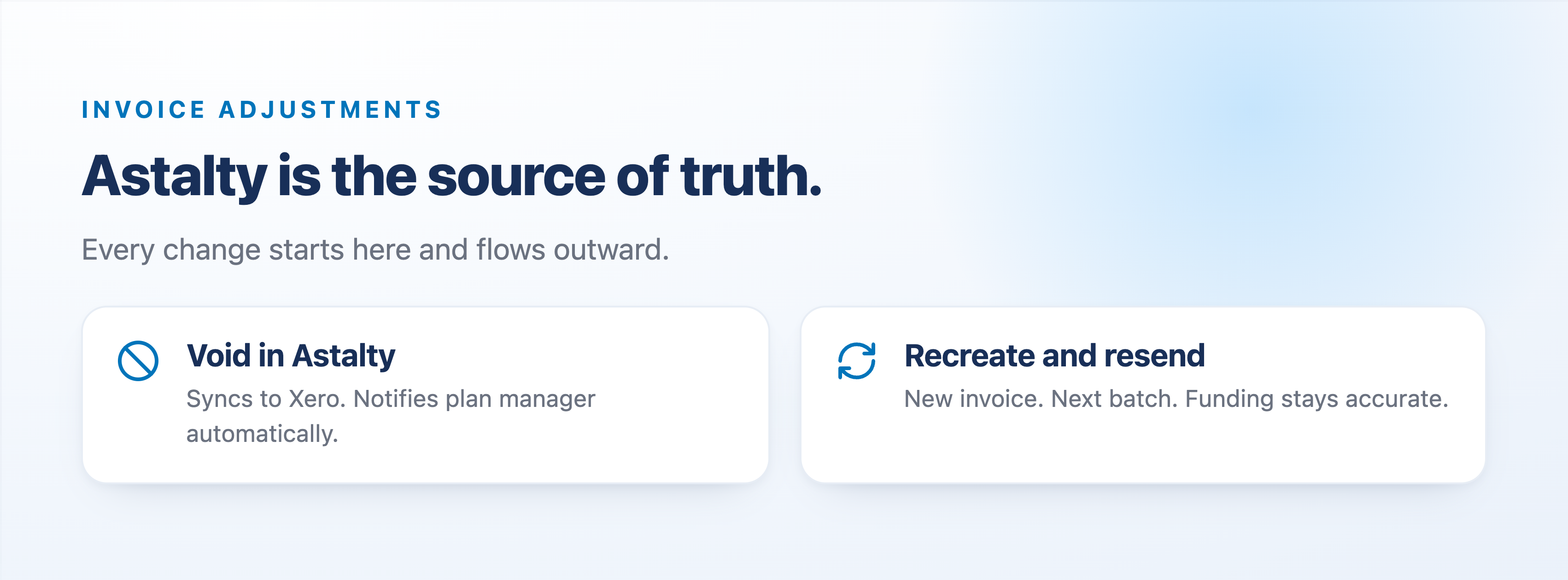
When something needs to change on an invoice that's already been sent, the same principle applies: you make the change at the source, which is Astalty.
The workflow looks like this. If a plan manager queries an invoice or a funding adjustment is needed, you void the invoice in Astalty. Voiding it in Astalty voids it in Xero at the same time, and the plan manager is notified automatically. You then make the adjustment, create a new invoice in Astalty with the correct amount, and send it in the next invoice batch.
This keeps everything in sync: Astalty, Xero, the plan manager, and your funding records. You're not making changes in two places. You're not manually notifying anyone. And because the correction flows through from Astalty outward, your utilisation tracking and budget visibility stay accurate throughout.
Xero integration (optional)
Astalty has a two-way Xero integration, but it's not required to run your invoicing.
Many providers use Astalty without any accounting integration and handle their full invoicing and reconciliation process within the platform. The Xero integration is available for teams that want their invoices and payments to flow between both systems automatically.
When connected, invoices created in Astalty for plan-managed and self-managed participants sync into Xero automatically. Payments reconciled in Xero flow back to Astalty. Astalty also connects to Xero Payroll so timesheets from the scheduling module can be processed directly, with SCHADS-compliant pay rates included.
Frequently Asked Questions
Are NDIS invoices sent from Xero or from Astalty? Directly from Astalty. When you confirm an Invoice Batch, Astalty sends the invoices to plan managers and self-managed participants from within the platform. Xero is not involved in that step. The reason this matters is that Astalty is the source of truth for participant funding. Invoices, utilisation tracking, and budget visibility all need to stay in sync in the one place, and that place is Astalty. If you void or adjust an invoice, you do it in Astalty. That change flows through to Xero and the plan manager is notified automatically.
Does Astalty handle PRODA bulk upload for NDIS providers? Yes. Astalty generates the PRODA bulk upload CSV file automatically from a confirmed Invoice Batch. Once PRODA processes the payment, you upload the receipt file back into Astalty and it reconciles each claim automatically.
How does Astalty invoice plan managers? When you confirm an Invoice Batch, Astalty creates the invoices and sends PDF invoices directly to the plan manager's email address from within the platform. You don't need a separate invoicing tool. You can also disable automatic sending for a batch if you need to make adjustments before they go out.
Do I need a Xero integration to use Astalty's invoicing? No. Many providers use Astalty without any accounting integration at all. The full invoicing workflow, creating batches, sending invoices to plan managers, generating the PRODA bulk upload file, reconciling NDIA payments, and tracking what's been paid, all works natively within Astalty. Xero is available if you want it, but it's not a requirement.
Does Astalty integrate with Xero? Yes, optionally. Astalty has a two-way Xero integration. Invoices sync from Astalty into Xero. Payments reconciled in Xero sync back to Astalty. Astalty also connects to Xero Payroll for timesheet processing. The integration is available to all subscribers but is not required to use Astalty's invoicing features.
Can Astalty handle NDIA-managed, plan-managed, and self-managed participants in the same batch? Yes, and you can also separate them. The Invoice Batch filter lets you scope a batch to a specific management type, so you can run NDIA-managed charges separately from plan-managed charges if your billing cycle requires it.
What happens if an NDIA payment claim is rejected in PRODA? Astalty flags the rejected claim directly on the charge within the Invoice Batch. You can fix the error and generate a new bulk upload file from the same batch without having to start over.
Can Astalty void and reissue invoices? Yes. Invoices can be voided directly in Astalty. Once voided, the invoice no longer counts as outstanding and you can create a replacement with the correct amount.
How long does NDIA payment reconciliation take in Astalty? Once you have the receipt file from PRODA, the reconciliation takes seconds. You upload the file, click Apply Results File, and Astalty matches each payment to its claim automatically.
Does Astalty send automatic invoice reminders? Yes. Invoice reminders can be configured in Invoice Settings to send automatically to plan managers and self-managed participants when invoices are overdue.
Summary
Astalty handles the full NDIS invoicing cycle in one platform, with or without an accounting integration:
Invoice Batches for NDIA-managed, plan-managed, and self-managed participants
Invoices created and sent directly from Astalty on batch confirmation
One-click PRODA bulk upload file generation from within the confirmed batch
Automatic NDIA payment reconciliation from the receipt file
Manual payment tracking for plan-managed and self-managed participants
Optional two-way Xero integration for invoices and payments
Optional Xero Payroll integration for timesheet processing
Invoice voiding and adjustment without leaving the platform
If you'd like to see how invoicing works in your account, book a discovery call or start a free 14-day trial.
