
Getting a service agreement signed before support starts is one of the most important things an NDIS provider can do. It protects you, it protects the participant, and it creates a clear record of exactly what was agreed: what supports are being delivered, at what frequency, at what cost, and for how long.
The problem is the workflow. Most providers build their budget in one place, write their service agreement in Word, copy the line items across manually, email a PDF, and then chase signatures for days. Every step is a handoff. Every handoff is a chance for something to be wrong or to fall through the cracks.
Astalty handles the entire service agreement process in one workflow: from building the budget, to generating the agreement with the Schedule of Supports pre-filled, to sending it for eSignature without leaving the platform.
Here is exactly how it works.
What goes into an NDIS service agreement
Before walking through the Astalty workflow, it helps to understand what a service agreement actually needs to contain.
A service agreement is a document signed by both the provider and the participant (or their representative) that sets out the terms of the support arrangement. While written service agreements are not legally required for most NDIS supports, the NDIA strongly recommends them (and will ask you for one, if you're ever audited) and as a practical matter they are essential for any provider that wants to clarify expectations, and maintain compliance records.
A complete NDIS service agreement should cover:
The participant's name and NDIS number
The provider's name and registered address
A Schedule of Supports: the specific supports being delivered, their NDIS line item numbers, frequency, duration, and cost
The total value of the agreement
How the provider will be paid
The cancellation and notice period policy
How disputes and complaints will be handled
How and when the agreement will be reviewed
The responsibilities of both the provider and the participant
Under the NDIS (Record Keeping) Rules 2018, signed service agreements must be kept for at least seven years.
Step 1: Create a budget in Astalty
Everything in the service agreement workflow starts with a budget. The budget is the source of truth for what you are going to deliver and at what cost. Building it in Astalty first means that information flows directly into the service agreement without any re-entering of data.
Navigate to the participant's profile and click Budget under the Utilisation section in the left menu. Click Create Budget in the top right corner.
Name the budget and select the type:
Internal Budget is for supports your organisation will deliver directly, using charge items already set up within Astalty.
External Budget is for quoting to external providers or for line items pulled from the NDIS price guide.
Select the budget dates. If the participant's plan dates are already in their Astalty profile, you can populate the budget dates from there automatically rather than entering them manually.
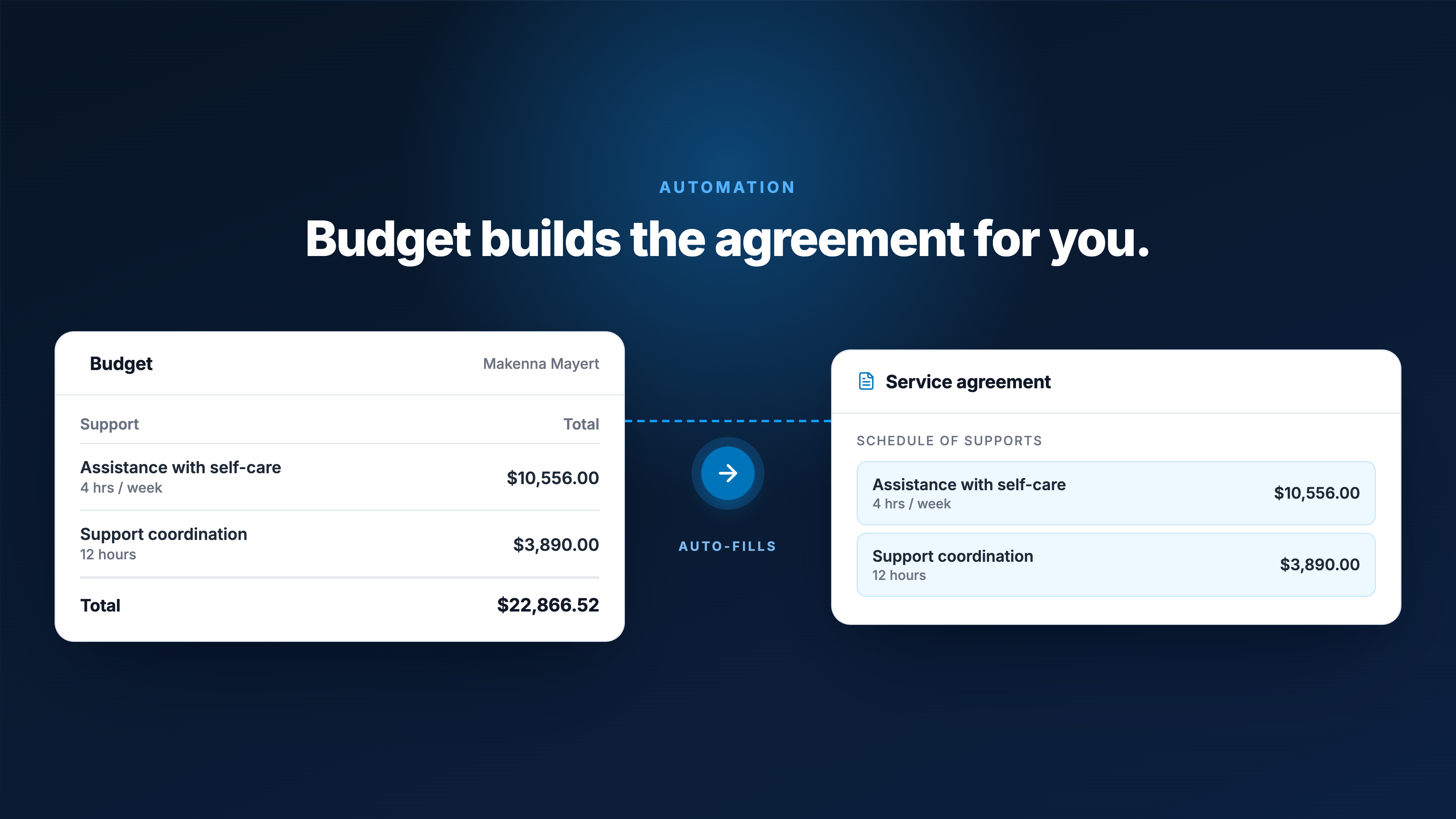
Once the budget is created, add the line items. For each support, select the charge item type, enter the units and time period, and add a description if needed. The budget builds out a complete Schedule of Supports as you add items, showing the frequency, unit amount, and total value for each line.
Once the budget is complete, you have three options: create a service from it, generate a service agreement, or export as a PDF quote. The next step is to generate the service agreement.
Step 2: Generate the service agreement
From within the completed budget, click Generate Service Agreement.
Astalty will prompt you to select a template. You can use an existing template from within your organisation, or upload a Word document. Astalty recommends using its own template, which includes placeholders that automatically pull in the budget data.
Select the budget you just created. You can also include prior budgets in the agreement if needed.
Click Generate.
Astalty creates a draft service agreement and opens it in a fully editable document view within the platform. The Schedule of Supports placeholder is automatically populated from the budget: it displays every line item, including the item description, frequency, unit amount, and total, in a formatted table. You do not need to type any of this in manually.
From here, you can edit and customise the document: update clauses, add or remove sections, adjust any detail that is specific to this participant's arrangement. When you are satisfied, click Finish Editing and then Finalise to lock the document.
Step 3: Send for eSignature
Once the service agreement is finalised, you can send it for signature directly from within Astalty.
Choose whether to download the agreement for in-person signing or to send it as an eSignature request. For most providers, the eSignature route is faster and creates a better paper trail.
When you create an eSignature record, Astalty uses its DocuSign integration to handle the sending and tracking. You can:
Add a title and message for the email that signers receive
Define who needs to sign: typically the participant (or their nominee), and your authorised representative
Add additional recipients who should receive a copy of the signed document without needing to sign
Set an expiry date for the request
Once you click Generate Request, you are taken to a document editing screen where you drag and place the signature fields exactly where they need to appear on the agreement. When you finish, the eSignature request is sent.
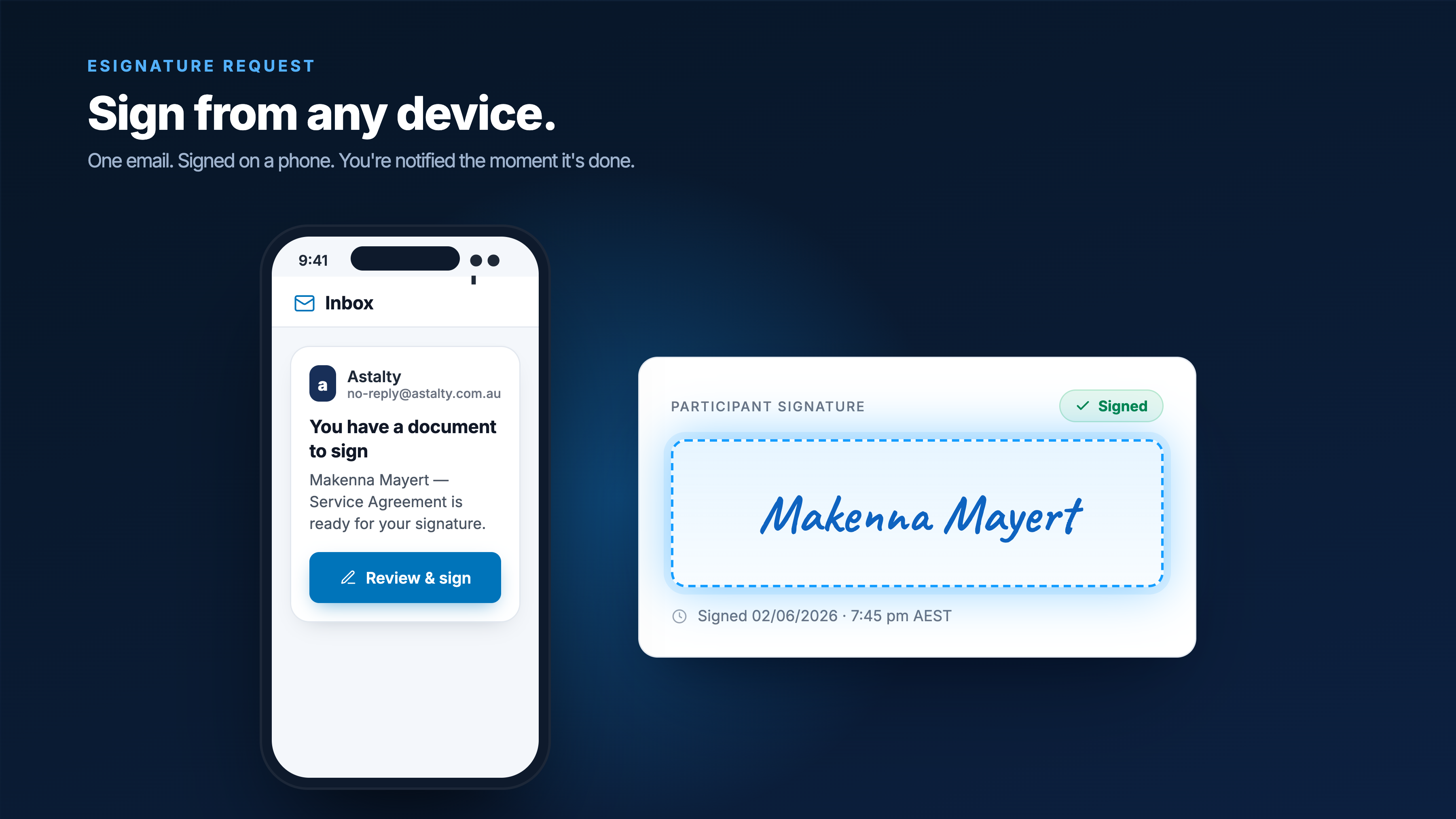
Each signer receives an email with a link to the signing page. They can sign on any device, including a mobile phone.
Step 4: Automatic reminders and tracking
Once the request is sent, Astalty monitors its status and sends automatic reminders if the document remains unsigned.
Reminders go out at:
24 hours after sending
72 hours after sending
1 week after sending
Both the unsigned signers and the person who sent the request receive these reminders. You do not need to manually follow up or remember to check whether the agreement has come back.
eSignature requests expire after 120 days if not completed.
You can track the status of every signature request from the eSignatures page in Astalty. Filter by status, date sent, or the team member who sent the request. For organisations where multiple people send agreements, this gives you a complete view of what is outstanding across your whole team.
Step 5: Completed agreements return to Astalty automatically
Once all parties have signed, Astalty retrieves the completed document and uploads it back into the relevant Signature Request. If the request was created from a participant's record, the signed copy also appears automatically in that participant's Documents page.
The participant's record is updated to show the agreement as signed. There is no manual upload step. There is no chasing a DocuSign email and saving the PDF to a folder. The document is back in Astalty where it belongs.
Compliance and audit trail
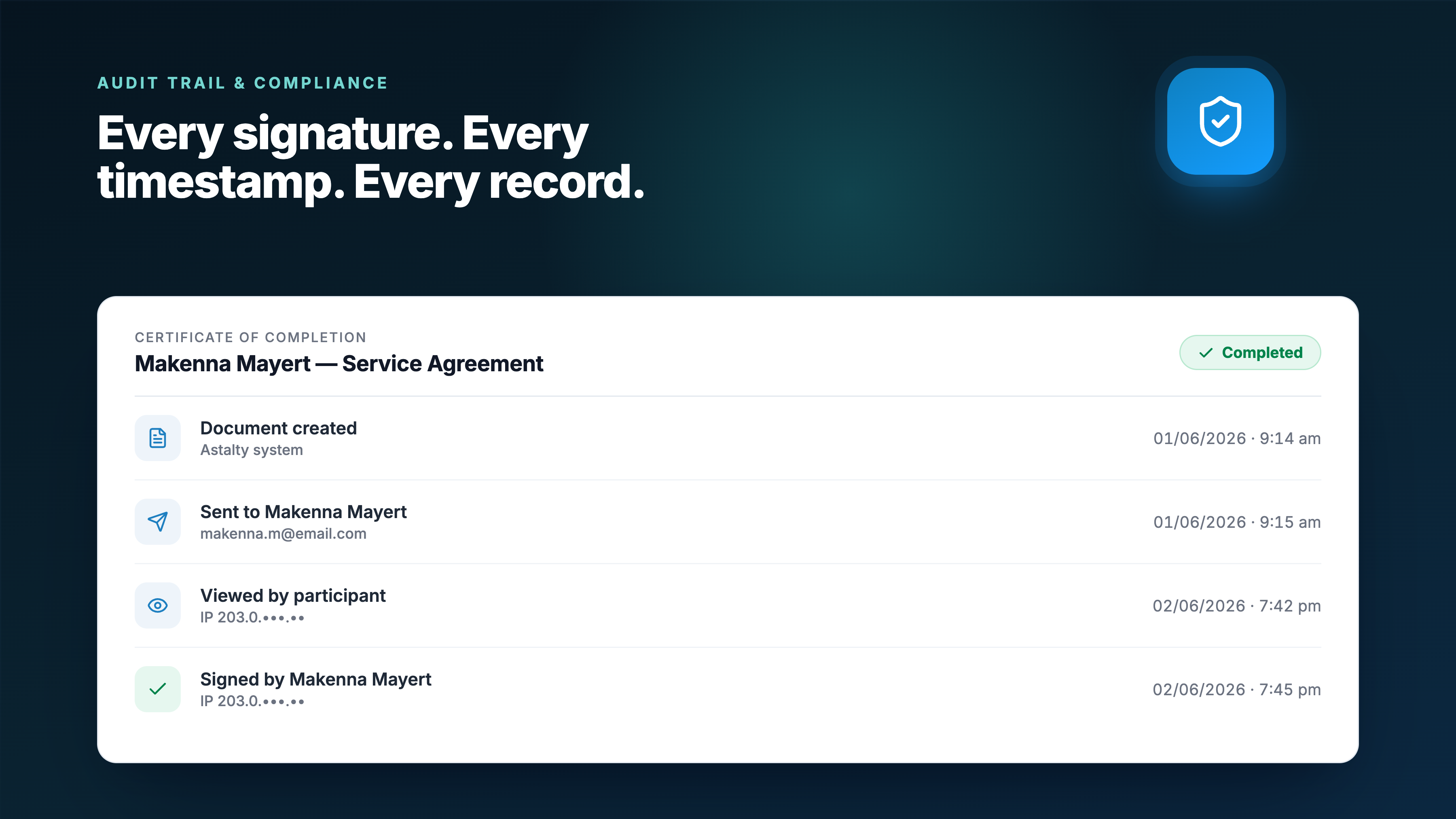
Every eSignature request in Astalty includes a comprehensive Audit Trail, also called a Certificate of Completion. This records the full signing history: who signed, when they signed, from what IP address, and the status of the request at every step.
To access it, open any eSignature request, click Actions, and select Download Audit Trail.
This is the record you keep for your seven-year compliance obligation. It is more detailed than a signed PDF alone, because it proves the signing process itself: when the request was sent, when it was viewed, and when each party signed.
Why managing service agreements inside Astalty matters
The reason to run service agreements through Astalty rather than a separate tool comes down to the same principle that applies to invoicing: Astalty is where the participant's support data lives, and keeping it in sync matters.
When a service agreement is generated from a budget inside Astalty, the Schedule of Supports in the agreement matches exactly what Astalty will use when billing. There is no version where the participant signed an agreement saying one thing and the system is set up to do something different.
When the agreement is signed and uploaded back automatically, the participant's file is complete without anyone having to manually track and file documents. The record is there, with the audit trail, whenever it is needed for an audit, a complaint, or a review.
And when a participant's arrangement changes, the same workflow runs again: update the budget, generate a new agreement, send for signature. The history of every agreement and every signing event stays inside Astalty against the participant's profile.
Frequently Asked Questions
Does Astalty have service agreement templates? Yes. Astalty provides its own service agreement template with dynamic placeholders that automatically pull in the participant's details and the Schedule of Supports from the budget you have built. You can also upload your own Word document template if you prefer to use a custom format.
Does Astalty use DocuSign for eSignatures? Yes. Astalty's eSignature functionality is powered by DocuSign. Signature requests are sent and managed through DocuSign's infrastructure, which means they are legally binding under the Electronic Transactions Act 1999 and are supported by a full audit trail and Certificate of Completion.
Can a participant sign a service agreement on their phone? Yes. DocuSign eSignature requests work on any device, including mobile. The participant receives an email with a signing link and can complete the process without downloading any software.
What happens if a participant does not sign the agreement? Astalty sends automatic reminders at 24 hours, 72 hours, and one week if the document remains unsigned. The request also stays visible in the eSignatures dashboard so your team can see what is outstanding. You can also send a manual reminder from within the request at any time. If the request is not completed within 120 days, it expires and a new one would need to be sent.
Does the Schedule of Supports in the service agreement pull from the Astalty budget automatically? Yes. When you generate a service agreement from a budget in Astalty and use the Astalty template, the Schedule of Supports placeholder populates automatically from the budget line items. This includes the item description, frequency, unit amount, and total for each support. You do not need to re-enter or copy this information.
How long do I need to keep NDIS service agreements? Under the NDIS (Record Keeping) Rules 2018, signed service agreements must be retained for a minimum of seven years. Astalty stores the signed document and the full eSignature audit trail against the participant's profile, so the record is accessible for the full retention period.
Can multiple people sign a service agreement in Astalty? Yes. When creating an eSignature request, you can add as many signers as needed: for example, the participant, a plan nominee, and your organisation's representative. Each signer receives the request at the same time and can sign independently. You can also add additional recipients who receive a copy of the completed document without needing to sign.
Can I send a service agreement to someone who is not in Astalty? Yes. When setting up an eSignature request, you can enter any name and email address as a signer, including people who are not users or participants in your Astalty account.
Does Astalty support service agreement versioning? Yes. You can run the service agreement workflow again whenever a participant's support arrangement changes. Generate a new agreement from the updated budget, send it for signature, and the new signed copy is stored in the participant's profile alongside the history of previous agreements.
Summary
Astalty handles the full service agreement workflow in one place, connected to the participant's budget from start to finish:
Build the budget with line items, frequency, and cost
Generate the service agreement with the Schedule of Supports auto-populated
Edit and customise the agreement within Astalty
Send for eSignature via DocuSign without leaving the platform
Automatic reminders until the document is signed
Signed agreement and audit trail auto-uploaded to the participant's profile
Full record-keeping for the seven-year NDIS compliance requirement
If you want to see how the service agreement workflow fits into the broader participant onboarding process in Astalty, book a discovery call or start a free 14-day trial.
For a step-by-step breakdown including a video overview, head to the Astalty user guide here.
